Create Subnet
Create subnet
To add a subnet to your VPC:
- Open the Amazon VPC interface at https://console.aws.amazon.com/vpc/.
- In the navigation pane, select Subnets.
- Choose Create subnet.
- Under VPC ID, select the VPC for your subnet.
- (Optional) For Subnet name, enter a name for your subnet. This will create a tag with the key Name and the value you specify.
- For Availability Zone, you can choose a Zone for your subnet, or leave it as the default No Preference for AWS to choose for you.
- For IPv4 CIDR block, select Manual input to enter an IPv4 CIDR block for your subnet (e.g., 10.10.1.0/24) or choose No IPv4 CIDR. If you use Amazon VPC IP Address Manager (IPAM) to plan, track, and manage IP addresses for your AWS workloads, when you create a subnet, you have the option to allocate a CIDR block from IPAM (IPAM-allocated). For more information on planning VPC IP address space for subnet IP allocation, see the Guide: Planning VPC IP Address Space for Subnet IP Allocation.
- For IPv6 CIDR block, select Manual input to choose the IPv6 CIDR block of the VPC in which you want to create a subnet. This option is available only if the VPC has an associated IPv6 CIDR block. If you use Amazon VPC IP Address Manager (IPAM) to plan, track, and manage IP addresses for your AWS workloads, when you create a subnet, you have the option to allocate a CIDR block from IPAM (IPAM-allocated). For more information on planning VPC IP address space for subnet IP allocation, see the Guide: Planning VPC IP Address Space for Subnet IP Allocation.
- Select an IPv6 VPC CIDR block.
- For IPv6 subnet CIDR block, choose a CIDR block for the subnet that is equal to or more specific than the VPC CIDR block. For example, if the VPC’s CIDR block pool is /50, you can choose a network mask length from /50 to /64 for the subnet. IPv6 network mask lengths can range from /44 to /64 in increments of /4.
- Choose Create subnet.
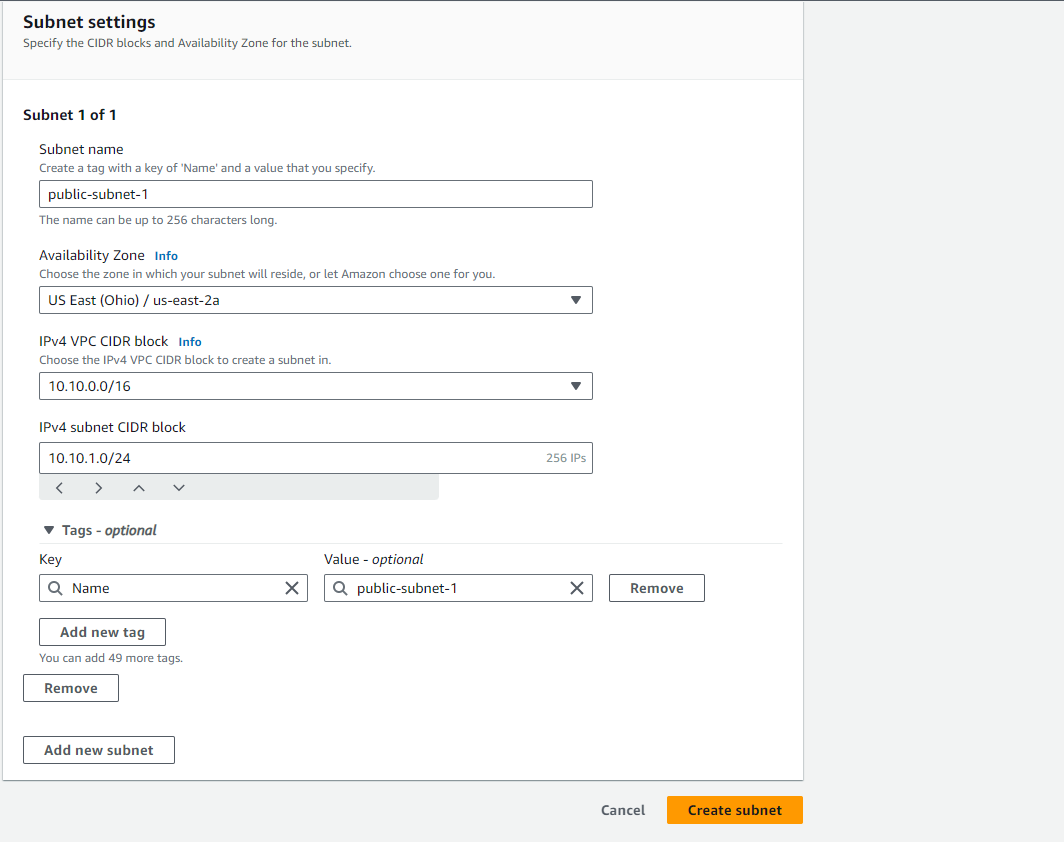
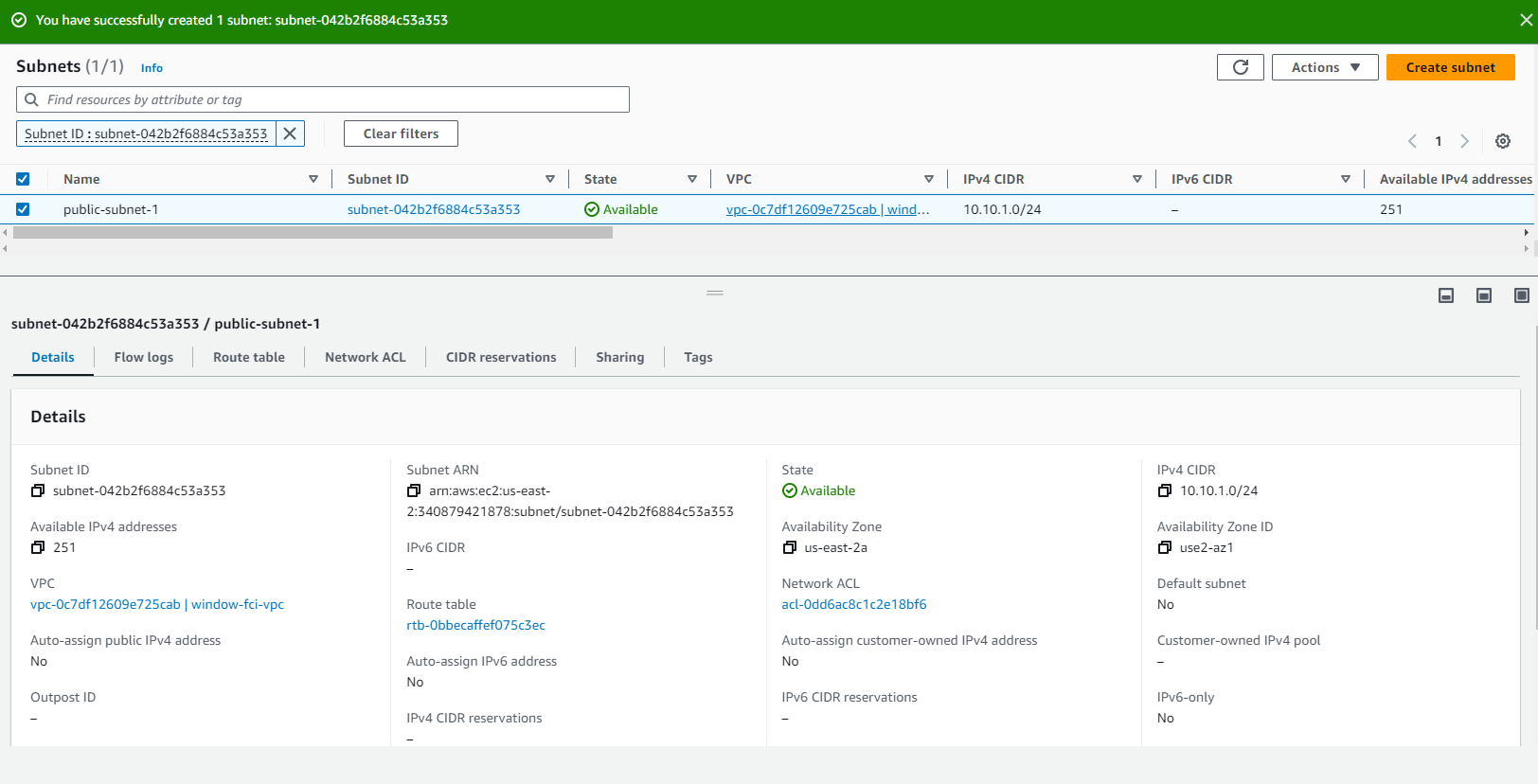
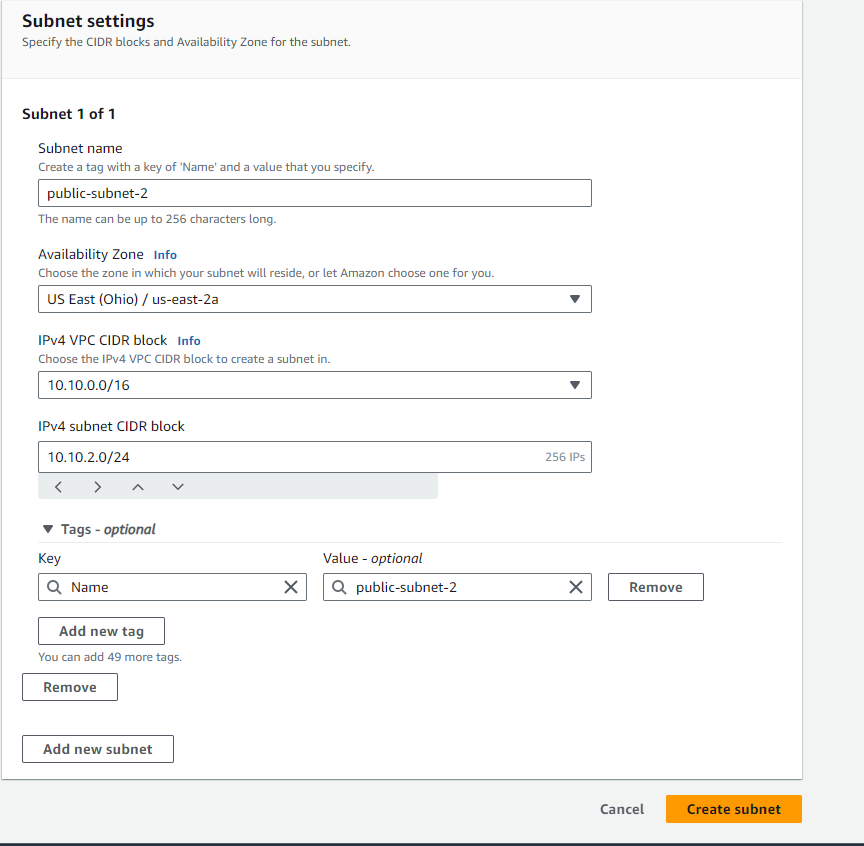
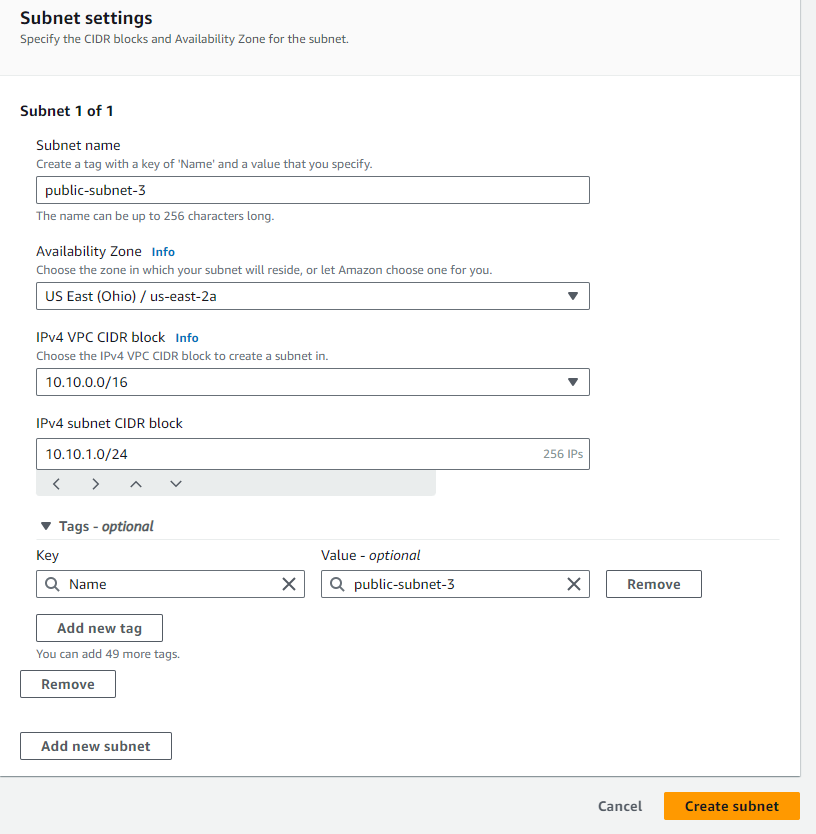
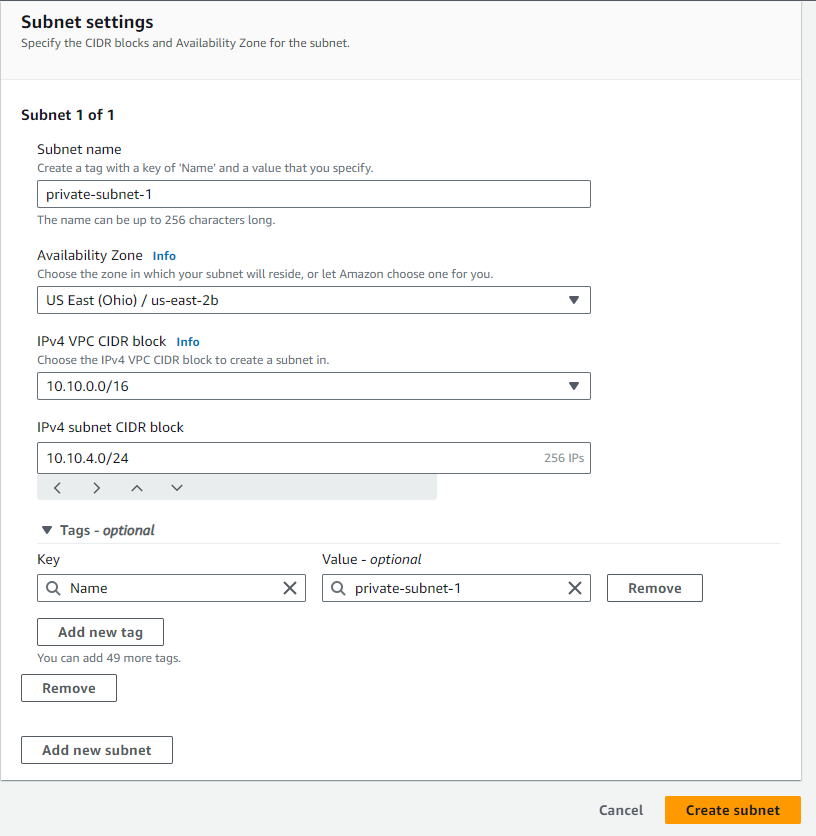
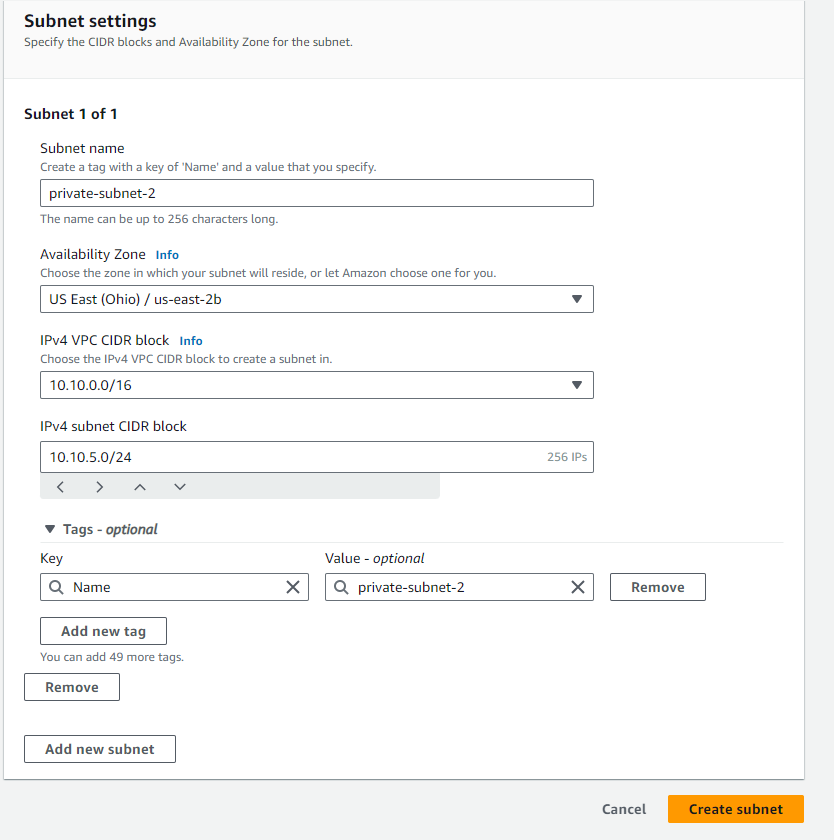
- Repeat the process for any additional subnets.
